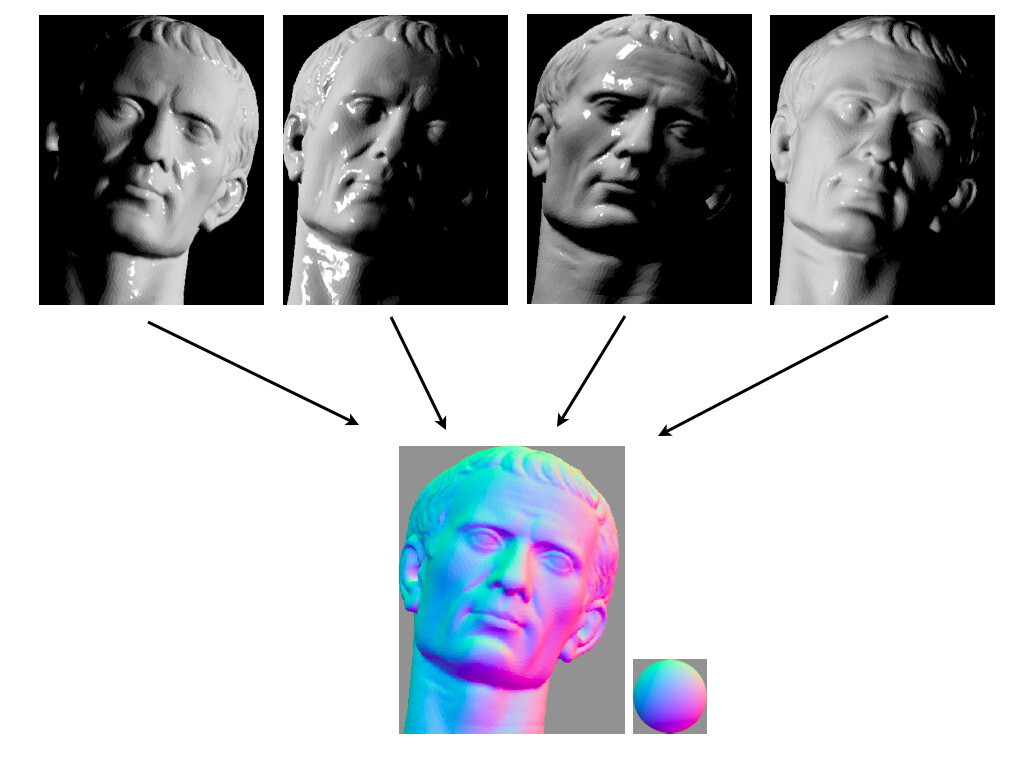
Photometric stereo is a technique in computer vision for estimating the surface normals of objects by capturing that object under different lighting orientations. It is based on the fact that the amount of light reflected by a surface is dependent on the orientation of the surface in relation to the light source and the observer. In our case observer is a camera.
But for some 3D artists or scanners that may be still do not give an idea how this working. How actually we can use lights to estimate normals?
For that let's see inversed process.
For example, Boxing Glove scan. Left picture in first row is a matcap render, right one is common way to visualize surface normals. Last three images are R, G and B images is a just normals render split to separate channels.
Need more hints?
Let's check how this looks in grayscale.
Looks familiar?
R looks like white glove illuminated from right, G like illuminated from Top and B like illuminated from behind camera!
And in photometric stereo capture we just do same but with real object and real lights!
WIP: Mathematically correct Brown–Conrady lens distortion model in Blender 2.91+ Lens settings calculated in RealityCapture from video shot with GoPro. One of our project patches for Blender for better Photogrammetry, Camera tracking, Camera Projection and more...
Sometime when you stitching equirectangular spherical HDRI panorama from HDRI images PTGui can output final panorama with extremely big dynamic range. Like daylight scene, that usually should not have more than 32EV it have 60EV+.
This can be or a noise from camera sensor, low overlap in exposure brackets (>2EV steps) and lack of longer exposure steps. Or just some “missed” pixels from mask or even low overlap in camera orientations.
Sometime you can quickly find bigger black spots and fix them in Photoshop, but sometime this is just one or two suspicious pixels with extremely dark value, probably around -40EV that you can easily missed on 16K pixel long spherical pano.
But fix this issue extremely easy. Just open HDRI in Photoshop, add Solid color layer with more realistic dark color about -16EV
And set this layer blend mode to Lighten
Now flatten image and save it as new HDRI image.
And now HDRI have more realistic for daylight scene dynamic range.
I did some tests to find out what the the influence of the Key Point Limit is on the alignment because it always bugged me not knowing what what Key Point Limit was high enough.
This is the project I used for testing, a scan of an rusty sewer lid:
It’s photographed with a D800 and a 35mm lens, and has a total of 52 photos at 36MP resolution.
I ran alignments with the following settings:
Accuracy: High Pair pre-selection: Generic Key point limit: from 1000 all the way up to 320000 Tie point limit: 0 (no limit)
Quick explanation of the settings:
Accuracy At High accuracy, Photoscan uses the full resolution photo (Medium would use the image at 50%, Low at 25%).
Pair Pre Selection With Pair pre-selection set to Generic, Photoscan will make a quick pre-scan to see which photos share the same view. If photos do not share the same view then it makes no sense to compare the points in the photos. This makes the alignment much faster (and with good quality photos it has no impact on quality at all)
Key Point Limit The maximum number of points Photoscan will extract from each photo. For a high quality 36 Megapixel photo the maximum number of points that can be extract is usually around 240000. For a 21 Megapixel photo this is generally 180000 points.
Tie Point Limit This setting has been added not so long ago. I am not completely sure, but I think when this setting is active Photoscan makes a pre-selection based on (visual) quality of the extract points (so it only compares the highest quality points).
For example, if your Key Point limit is set to 40000 and the Tie Point Limit is set to 1000, then Photoscan will first extract 40000 points for each photo, and only keep the best 1000 points. These 1000 points per photo are then used for the alignment calculations.
This would speed up the alignment a lot because there is only a fraction of the points to compare, but since I am not sure about this setting I have set this value to 0 (=no maximum).
I ran alignments for Key point limits from 1000 all the way up to 320000, and put the results in some graphs.
Number of Points in the Sparse Cloud after alignment:
A higher Key point limit means more points in the Sparse Cloud. It starts levelling off after 240.000 points, because the maximum number of points that can be extracted is being reached for some images.
Alignment time:
The alignment time is pretty much linear, which was a surprise to me because I expected it to be exponential. The graph varies a bit, because I was using my computer for other things as well so the times are not completely accurate.
Reprojection Error
The next graph is the reprojection error:
The Reprojection error is a measure of accuracy of the points, measured in pixels. When you think about this, these values are pretty impressive: Photoscan is able to align the cameras with a sub-pixel accuracy!
The reprojection error for an alignment with 40.000 points is almost twice as big as for an alignment with 120.000 points (0.7 vs 0.4 pixels). But we can optimize the Sparse Point Cloud and redo the camera alignment.
To do this, I have used Edit->Gradual Selection->Reprojection Error with a value of 0.5 and removed those points. This gets rid of all points with a reprojection error larger than 0.5 (about a third of the points in the Sparse Cloud) Then I used Tools->Optimize Cameras to redo the alignment of the cameras. After optimizing, the graph for the reprojection error looks like this.
So after optimization the reprojection error is pretty much the same for all Key point limits (and I did not loose that many points) . The reprojection error now has values around 0.25, so Photoscan managed to align the cameras with a precision a quarter of a pixel!
I tried optimizing the point cloud even further by using “Gradual Selection -> Reconstruction Uncertainty = 8”, but the reprojection error actually increased slightly after these optimizations. I don’t think the accuracy is actually worse (since I deleted bad points), so maybe the reprojection error is not the best indicator of the accuracy of the alignment?
Dense Cloud Quality
All this talk about Reprojection Error is pretty theoretical, what is the effect on the Dense Point Cloud? I did a Dense Cloud reconstruction at “High” quality for the various alignments. I converted the result to a normalmap, because we know from experience that a normalmap shows problems really well.
10000 points: there are some cameras that are excluded from the Dense Cloud reconstruction, so the Dense Cloud has some holes. Also, there is some general noise all over the scan.
20000 points: looks much better, but there is a very slight noise (only visible if you overlay the normalmaps).
40000 points: scan looks good
more than 40000 points: no visible difference in quality.
I also did a comparison with the Dense Cloud build at the Ultra quality setting. There wasn’t any visible difference either.
Conclusion
The default value for the Key point limit (40000 points) seems to be well chosen. I don’t see any improvement in quality of the Dense Cloud when using an alignment with more than 40000 Key points. If you look at the values of the reprojection error after optimization, this actually makes sense. The values are all under 0.3 pixels, which is well under the size of the details in the Dense Cloud. The alignment might be 0.1 pixel more precise, but this is way below the threshold of visibility (I would estimate that details in the Dense Cloud are for structures at least 2–3 pixels in size).
I will probably run my alignments at a higher Key point limit anyway (maybe 120000 points), just to be sure that my alignment is as accurate as possible. The Alignment doesn’t take that much time compared to the DC reconstruction, and it gives me that warm safe feeling of doing it right.
Please note that your results may vary: this is a very specific type of scan where all the photos are in the same plane. A more 3D object might need more points for a good alignment. Also, the photos in this project have almost perfect sharpness, so Photoscan has a very good input. If the photos would be less sharp, more points would be deleted during optimization (and using more points might be useful).
“ Export also can be 8-bit JPG with 100% quality. Which are enough for 16bit textures (yes — 8bit JPG images can give 16bit textures — if you know mathematics and image processing basics).”
You can find this a bit strange. But lets talk not about “Spherical cow” but about real world scan data. ;)
If you ever made any photogrammetry scan, you already found that you probably never scanned objects that have flat color or even long subtle gradient from light blue to more lighter blue. Or if you ever tried that, you already have found that such surface is a nightmare for scanning, because only structured light or even LIDAR scanners only can give you good results. Photogrammetry just failed on them. No details, or rough blobby surfaces.
Yes, photogrammetry required strong and good visible textures to all its steps. From aligning to meshing.
And now lets check what we have in our 16bit data from Camera RAWs. For that we will open RAW from camera with CameraRAW in Photoshop at 16bit. After that lets make clone of this image to a new document, change color from 16bit to 8bit and copy this 8bit layer back to original 16bit document (with shift key pressed). Now we need change layer blend mode from Normal to Difference and voila, we see LSR part of our 16bit data.
You’ll say — wait, it black! Yes! This least significant bit store so small details that you probably never see. But if you still thinking that this bits stored something important. Just flatten your layers and use Equalize for Normalize this information into 0–100% range. What you see? I see noise… or something that looks like noise. :)
So this is a first reason do not care so much about 16bit. Because you always can add some noise to LSB if you want have same as source 16bit :D
Ok, now about how 8bit source can give you 16bit textures.
This is a pure mathematics. Every color correction that you making in 16bit will give you 16bit data, just because you always will have chance to “shift” 8bit “snapped” color somewere in between that will give you 16bit value (8bit just round this value to nearest 8bit value). But you will say that such transformation will remain original 8bit histogram. And mostly youl’ll be right.
And now a “magic”. Every image transformation made in 16bit (excluding 90-180–270–360 degree rotation) because of subpixel transformations will create new pixels in 16bit range. And that was always happen in photogrammetry Texturing step and/or in texture baking steps.
BTW, this even happen if you just downscale your texture with any method excluding “nearest neighbor”.
That’s why in my workflow where i bake albedo/diffuse texture from textured high resolution mesh is not requred 16bit at all. Just because xNormal will give me same 16bit texture as it will give me if i will bake from 16bit texture. And because my scans already de-lighted. And i do not need strong color correction that can required as much as possible bits for better work.
BTW, here how “good” 16bit data look. For this kind of textures you need 16 or better 32bit float format:
Left “16bit” right LSB part of it. Or to be correct left is a MSB, right LSB.
I found that this simple term have different meaning for us. This is not about optical/physical overlap. Focus brackets have 100% optical overlap. Or in turntable scan we can see 100% of object in all frames.
In photogrammetry overlap have a bit different meaning. It’s about difference in visible points on scanning surface.
So if we scan flat wall and see 1m of it on image, and move camera 20cm side, than this is 80% overlap.
And again, this is not about 20cm difference, this is about 80% of points one both images are identical.
For turntable scan, same. If two frames share 80% of identical surface points this mean 80% overlap.
And finally focus brackets: if you see in one bracket only far parts of object in focus and only nearest parts on another bracket, this mean you fucked your scan because overlap near Zero for this brackets. They do not have any identical points that can use photogrammetry software for its work.
I wrote this answer for one person in RealityCapture forum, but I think this tutorial can be useful for many people.
So, how we should acquire images. Basic rules that work for all modern photogrammetry tools.
First of all, we must remember, that photogrammetry required not silhouette of object but surfaces itself with details (textures).
Now let’s imagine simple chair: It have surfaces that points top, sides and bottom.
So we Must Have at least 1 image directed toward to the every surface.
And not less than 2 images in 10–15 degree to first camera.
Central camera will give you perfect texture. Other two with will give clean Depth maps for this Central camera (and later clean Dense Clound) that required for calculation 3D topology.
And this must be for Every surface you want scan! Every surface in ideal condition must have 3 shots.
But if we have surfaces that attached in high degree (90 degree like in example) we need additional images shot for “stitching” Dense Clounds in angles between main camera triplets. Like this.
“Final” scheme will looks like this:
So we have 15 camera only for 3 surfaces!
Ok, in real world with good camera like Nikon D810 and good lens we can “cheat” and use only 5 camera. But for this example with 3 surfaces at 90 degree all, even from D810 result will be not perfect.
So i can’t recommend shoot less than 11 images
or this will be not enough data for clean depth maps->dense clouds-> mesh, textures, and as result final topology will have less details or will have problem in topology (especially if object have weak surfaces).
And now if we see any nice object that we want to scan, we can plan where and how many images we should have for clean topology and textures.
Also we should remember about real camera and lens. Them can have DOF, aberrations, non linear distortions (last two problems common for area near corners and edges of photo). So real, good data from image is about 75–80% (sometime less) in center of image. And all this can required additional images for good 3D reconstruction.
After this post, i receive another question about “about a flat / rock, bumpy/ wall”. And my scheme about camera triplets can confused if we want scan “flat” surfaces. And I see that i did not explain how depth maps calculation part of MVS is working.
So i do this on “scanning flat surface” scenario.
We have two camera looking towards to wall. And distance between this 2 camera have about 60–70% overlap.
Light red area where we have “stereo” information and can reconstruct depth. As you can see, this is only 60–70% of image we took with 1 camera. So we can reconstruct only 70% of depth maps on every camera.
For reconstructing full wall depth we should take images with overlap enough for reconstruct all surface depth data without any gaps.
Here we have central camera and two “side” camera. In camera #1 we can recreate 100% of Depth. In cameras 2 and 3 only 70%.
But don’t forget that in real image due to real sensor, lens distortions, focus etc., we can “trust” only central part of image. And depend on camera, lens, and other conditions this can be only about 50~80% crop.
That’s why any photogrammetry software recommend take photos with 60–80% overlap for good results.